Best Tablets for University Students


Whether you’re off to college or uni, a Samsung Galaxy tablet is an excellent option for both work and play. Gone are the days when you need to rely on a desktop to get your work done. The best student tablets put power, portability and performance at the forefront of innovation and are sure to make student life a whole lot easier. And with a fantastic range of student offers available, we explore why a Samsung Galaxy Tab really is the best student tablet for you.
Are tablets good for studying?
Yes, a tablet is useful for students, offering a portable and versatile device for note-taking, research, writing assignments, and entertainment. Benefits for student life include:
• Portability – light enough to carry between lectures or around campus, unlike a laptop
• All-day battery life – lasts through a full day of classes without needing to recharge
• Note-taking with S Pen – models like the Galaxy Tab S12 series let you write directly onto the screen to take notes, or draw and design projects to share with others
• Affordability – Galaxy tabs cover everyday tasks like browsing, streaming, and light note-taking at a lower price point than laptops
• Student discounts – Samsung offers tablet student discounts to help make the right model more affordable
Why choose a Samsung Galaxy Tab for university?
A Samsung Galaxy Tab is a good choice for university thanks to its portability, S Pen note-taking, and flexible ways to buy and own one. Reasons to consider one include:
• Portability – lightweight enough to carry between lectures, with all-day battery life for a full day on campus
• Note-taking with S Pen – write, annotate, and organise notes directly on the screen with Samsung Galaxy Tab S12 series tablets
• Flexible finance options – spread the cost with a finance plan or buy now, pay later, making a tablet more affordable around a student budget
• Cellular connectivity for students on the go – 4G and 5G models, including eSIM support, let you stay connected between lectures without relying on WiFi
• Straightforward warranty and returns – know what's covered if something goes wrong with your device during your studies
• Trade-in options – put an old device toward the cost of a new Galaxy Tab, making it easier to upgrade as your needs change


How can I use my tablet to study?
A Samsung Galaxy Tab can support studying in several ways, from note-taking and research to collaborating with classmates. Here's how:
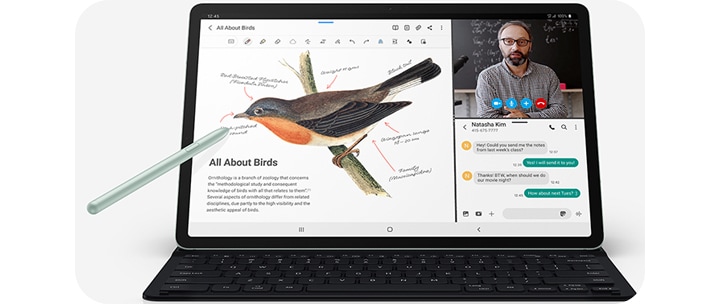
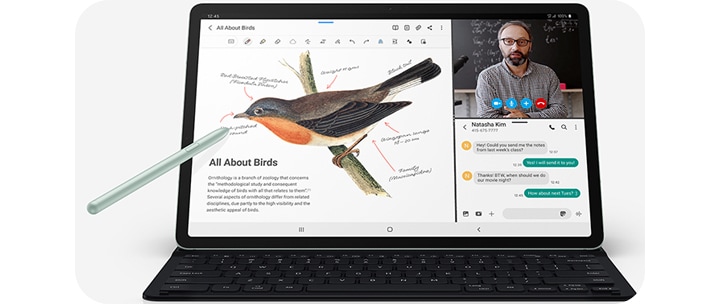
• Note-taking – take detailed lecture notes using Samsung Notes, or write and annotate directly on the screen with the S Pen
• Assignments – complete and edit coursework using productivity apps like Google Docs and Microsoft Office
• Collaboration – work on group projects and share documents with classmates, or join lectures and study sessions remotely using video conferencing apps such as Zoom and Microsoft Teams
• Organisation – keep track of assignment deadlines with organiser apps such as myHomework, and access recorded classes to catch up remotely
• Research – look up sources and access journals on the go with a 5G-enabled Galaxy Tab*
*Data plan sold separately
*Data plan sold separately
How do I write notes on my tablet?
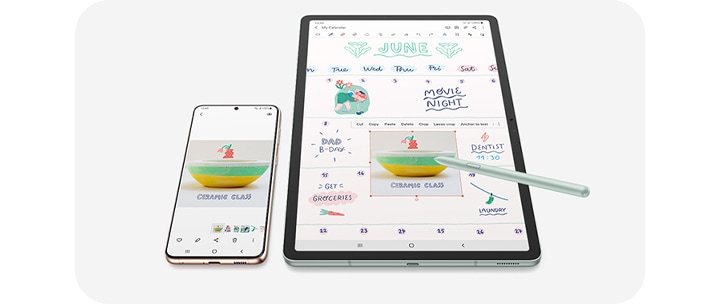
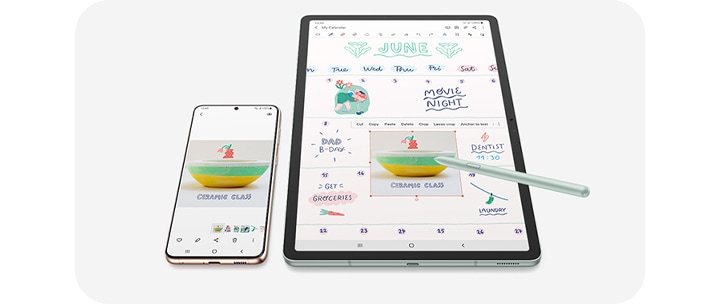
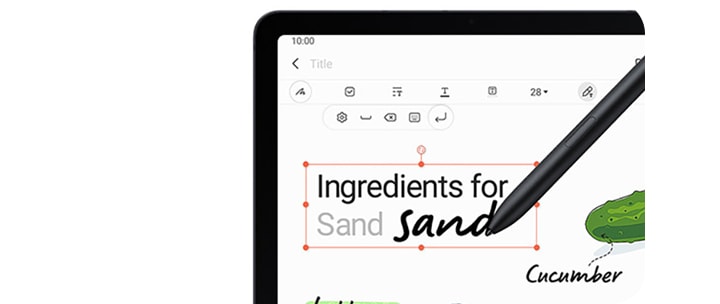
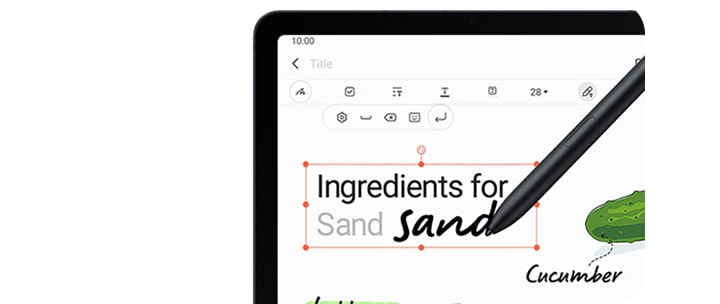
Forget scrappy, muddled pieces of paper, the innovative Samsung Notes app lets you quickly write things down on the screen and save them for reference later. With Samsung Notes you can use the S Pen (if supported), on-screen touchpad or Book Cover Keyboard to take and store notes conveniently. You’ll find the Samsung Notes app ready to go on your Galaxy Tab.
Leave your traditional stationery at home. The Samsung Notes app has everything you need for note taking. You have the freedom to switch between different types of pens, highlighters and rubbers in the app’s toolbar. You can even customise the thickness and colour of your pen. You can also highlight a section of text and select an action such as cut, copy, paste, dictionary, clipboard and share.
When you’ve had enough of typing you can simply jot down your thoughts with the S Pen and let the app translate them to text. You can even write in another language and Samsung Notes will convert your handwriting in that language to text as well. Or why not make things even quicker? Simply speak your thoughts and ideas and make live voice recordings. Ideal for those occasions when it’s easier to verbalise your ideas than write them.
Can you print from a tablet?
Yes! Although your tablet can store everything you need electronically, when it comes to submitting assignments and projects, sometimes you’ll need to submit a hard copy. It’s easy to print from your Galaxy Tab simply follow the steps below:
1. Navigate to Settings
2. Search for Printing
3. Tap Printing and tap Default Print Service to search for compatible devices
4. If no compatible devices are found you’ll need to download plugin from the Google Play Store
5. Select the correct plugin app for the printer you use
6. Tap install
7. You’ll find the downloaded plugin under Settings > Printing > Print services
8. Tap the plugin to search for your printer
9. You are now set up and ready to print
Alternatively, if your printer has a USB connection you can use an OTG adapter and USB cable to plug into your phone's charging port and the printer's USB port.
You’ll find the print option in one of three places in most apps:
1. More options (three vertical dots in the upper right corner)
2. Share > Print
3. Own in-app print menu (e.g. Word)
Please note: Not all apps on the Play Store support printing

Can you video call on a tablet?
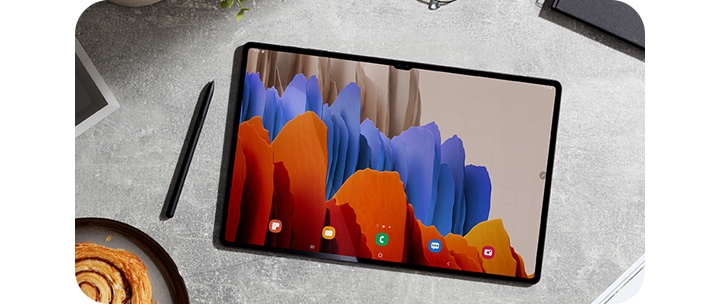
Yes, you can video call on a Samsung Galaxy Tab using apps like Zoom, available free on the Google Play Store. A tablet's larger screen and front-facing camera can make video calls easier to follow than on a smaller phone screen, whether you're collaborating on a project or catching up with family and friends.

Can a tablet use Microsoft Office?
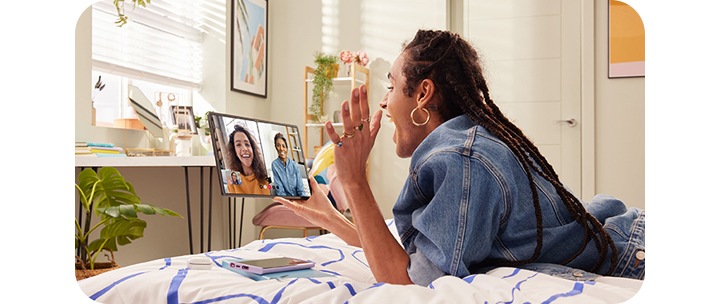
You can get all of the Microsoft Office suite apps on a Galaxy Tab by downloading it from the Google Play Store. You have the option to install one integrated Office app or separate apps for Word, Excel, PowerPoint and OneNote and if you have a smaller Galaxy Tab such as the 8.7 inch Galaxy Tab A11 LTE you won’t need to pay since Microsoft Office is currently free on devices that are 10.1 inches or smaller. For larger Galaxy Tabs you’ll need to sign up for a Microsoft 365 subscription which gives you extra capabilities and storage options.
What are the best apps for studying?
With so many apps available on Samsung tablets, it can be hard to know where to begin when it comes to studying. Here are our top free study apps to get you started:
• Samsung Notes: Write, draw and highlight in a variety of styles and colours during your lectures and meetings
• Google Drive: Great for collaborative working whether it's a word document, spreadsheet or formal presentation. Find your documents in Google Drive where they are saved to the free Google cloud service.
• Todoist: A digital planner that lets you track classes, assignments, exams and group projects so you're less likely to miss a deadline.
• RefMe: Getting to grips with source referencing in your essays can be a bit of a headache. RefMe makes the process of finding and citing sources quicker and easier. It also has thousands of educational resources which can be a great place to start your assignment research.
Which Samsung Galaxy Tab is best for students?
The best Samsung Galaxy Tab for students depends on your budget, how you'll use it, and whether you need 5G connectivity. Compact, affordable models suit everyday tasks like note-taking and browsing, while larger S Pen-compatible tablets suit students who want to draw, annotate, or work on creative projects. Take a look at the options below, or use our Samsung Tablet comparison chart to compare models side by side.
Think about size
How do you plan on using your Galaxy Tab? If you want a tablet for multitasking during the day and watching content in the evening, a larger tablet such as the Samsung Galaxy Tab S12+ 5G, with its 12.4-inch Super AMOLED display, is a good fit. If you'd prefer something lightweight to carry between lessons, the 8.7-inch Galaxy Tab A11 LTE is a more portable option. For more detail, see our 'Which Tablet Screen Size Is Best For You?' guide.
Stay connected on the go
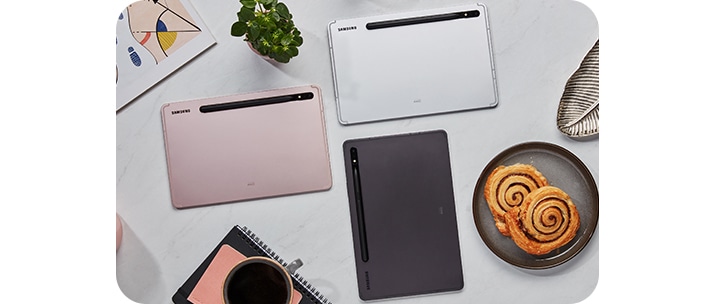
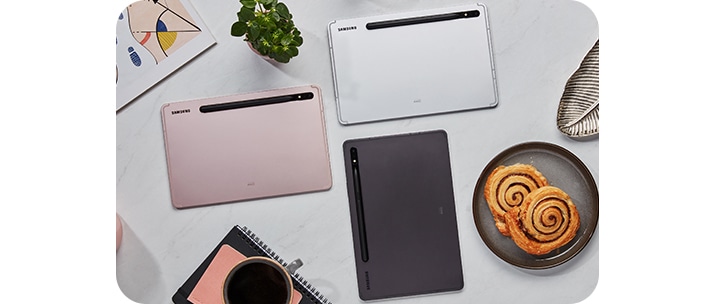
As a student, you're unlikely to stay in one place for long, whether you're moving between lectures, catching up on emails in the students' union, or travelling between campuses. WiFi-only tablets let you connect to the internet through WiFi, which works well at home or in places with reliable WiFi. For more flexibility elsewhere, opt for a tablet model with 4G or 5G connectivity*.
*Data plan sold separately
*Data plan sold separately
S Pen compatibility
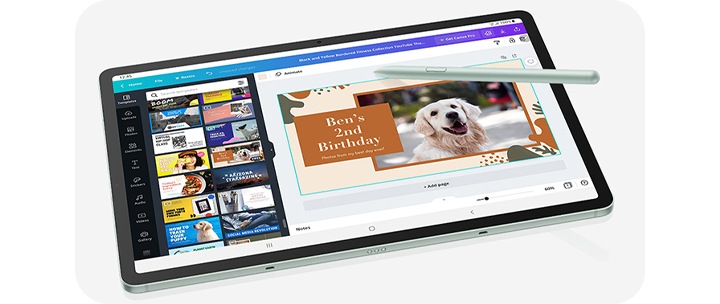
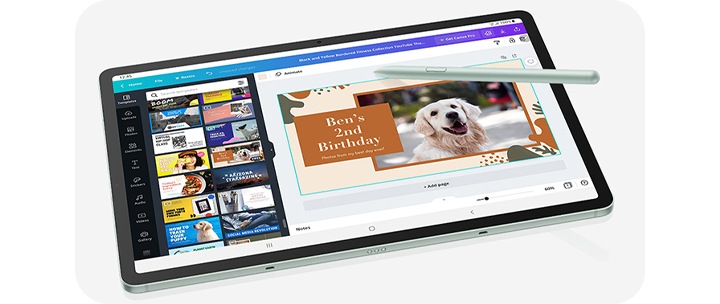
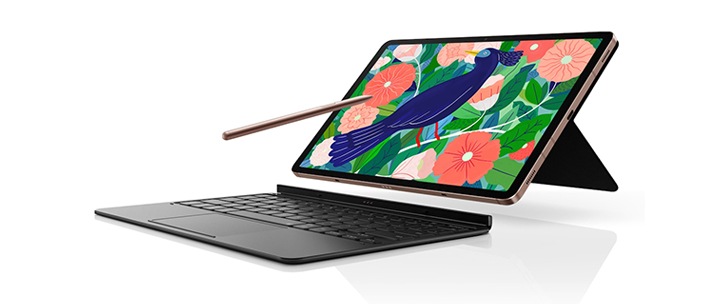
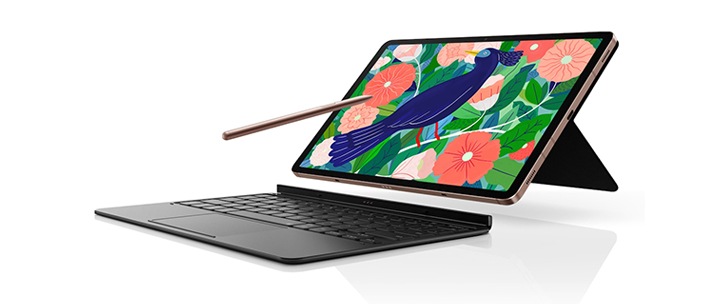
When it comes to note-taking, the S Pen offers precision that touch alone can't match. All Samsung Galaxy Tab S12 series tablets include the S Pen as standard, letting you take notes or draw directly on the screen.
How much storage will you need?
If you plan to save assignments, files and photos to your tablet, storage is worth considering. Options range from 64GB on the Galaxy Tab A11 up to 1TB on the Galaxy Tab S12 Ultra. You can also free up space using cloud storage such as Microsoft OneDrive, or expand storage on supported models with a MicroSD card. Browse our full range of MicroSD memory cards, or find out more in our memory and storage guide.
What about battery life?
You don't want to find yourself mid-essay only for your tablet to lose power. If you're looking for a Galaxy Tab with long-lasting battery life, the two Galaxy Tab S12 models are worth considering. The Tab S12 Ultra offers up to 23 hours of video playback*, and Super Fast Charging 2.0 (45W)** means you won't be waiting long to top up.
Samsung tablet accessories
A range of Galaxy Tablet accessories can also help you get more out of your tablet for studying. Tablet keyboards such as the AI Book Cover Keyboard with Trackpad turn your tablet into something closer to a laptop, with a large trackpad, integrated keyboard, and a flexible cover for finding the right angle. You can pair it with a Samsung Bluetooth mouse for more comfortable working on the go, or a pair of Galaxy Buds4 Pro with noise cancelling and adjustable sound for focused study sessions.
- *Estimated against battery capacity and measured current over battery power consumption during video playback (video file resolution 720p, saved on device). Actual video playback times vary.
- **Charger sold separately.
- *Estimated against battery capacity and measured current over battery power consumption during video playback (video file resolution 720p, saved on device). Actual video playback times vary.
- **Charger sold separately.
Get great student savings with Samsung Galaxy
There's a Samsung Galaxy Tab for most budgets, whether you're looking for an entry-level or pro-grade model. Prices currently range from £149 for the Galaxy Tab A11 to £1,199 for the Galaxy Tab S12 Ultra, with the Galaxy Tab S10 FE available in between at £459. Samsung also offers student discounts on top of these prices, so check the Student Offers page for the latest deals.
For more help choosing, see our 'Galaxy Tab Series Explained: Which is the best Samsung tablet for you?' guide.
Frequently Asked Questions
-
Is a laptop or a tablet better for university students?Laptops tend to suit students who need to run specialist software, produce lengthy written work or manage heavy workloads across multiple programmes. Tablets shine when it comes to portability, note taking and flexibility - ideal for moving between lectures or studying on the go. Many students find using both together works best, and Samsung Galaxy devices are designed to sync seamlessly, so you can pick up exactly where you left off, whichever device you're on.
-
Can I use Zoom on a tablet?Yes - Zoom is available as a free download from the Google Play Store on any Samsung Galaxy Tab, so you can join online classes, group project calls or catch-ups with friends and family wherever you are.
-
Do Samsung offer student discount on tablets?Yes - Samsung offers student discounts across a range of Galaxy products, including tablets. Head to the Samsung Student Offers page to see the latest deals and find out how much you could save on your next Galaxy Tab.
-
Is S Pen good for note taking?The S Pen is one of the best tools a student can have for note-taking. It lets you write directly on the screen just like pen and paper, with low latency that makes it feel natural and precise. You can switch between different pen styles, highlighters and colours in the Samsung Notes app, and when you're done, the app can automatically convert your handwriting to text - handy for tidying up notes after a lecture. All Galaxy Tab S12 series tablets include the S Pen as standard.
-
Can I write an essay on a tablet?Absolutely. Samsung Galaxy tablets support the full Microsoft Office suite, including Word, via the Google Play Store - so writing, editing and formatting essays is straightforward. Pair your tablet with a Book Cover Keyboard for a more laptop-like typing experience, or use Google Docs if you prefer working in the browser.
Most common questions
Explore answers to frequent queries below.


Schema
